
Start Production
Last updated: 11 Jul 2026
Initial Preparations
It is recommended to keep the machine lid closed during PCB setup to maintain consistent lighting conditions by minimizing external light interference.
Navigate to the “Start Production” tab.
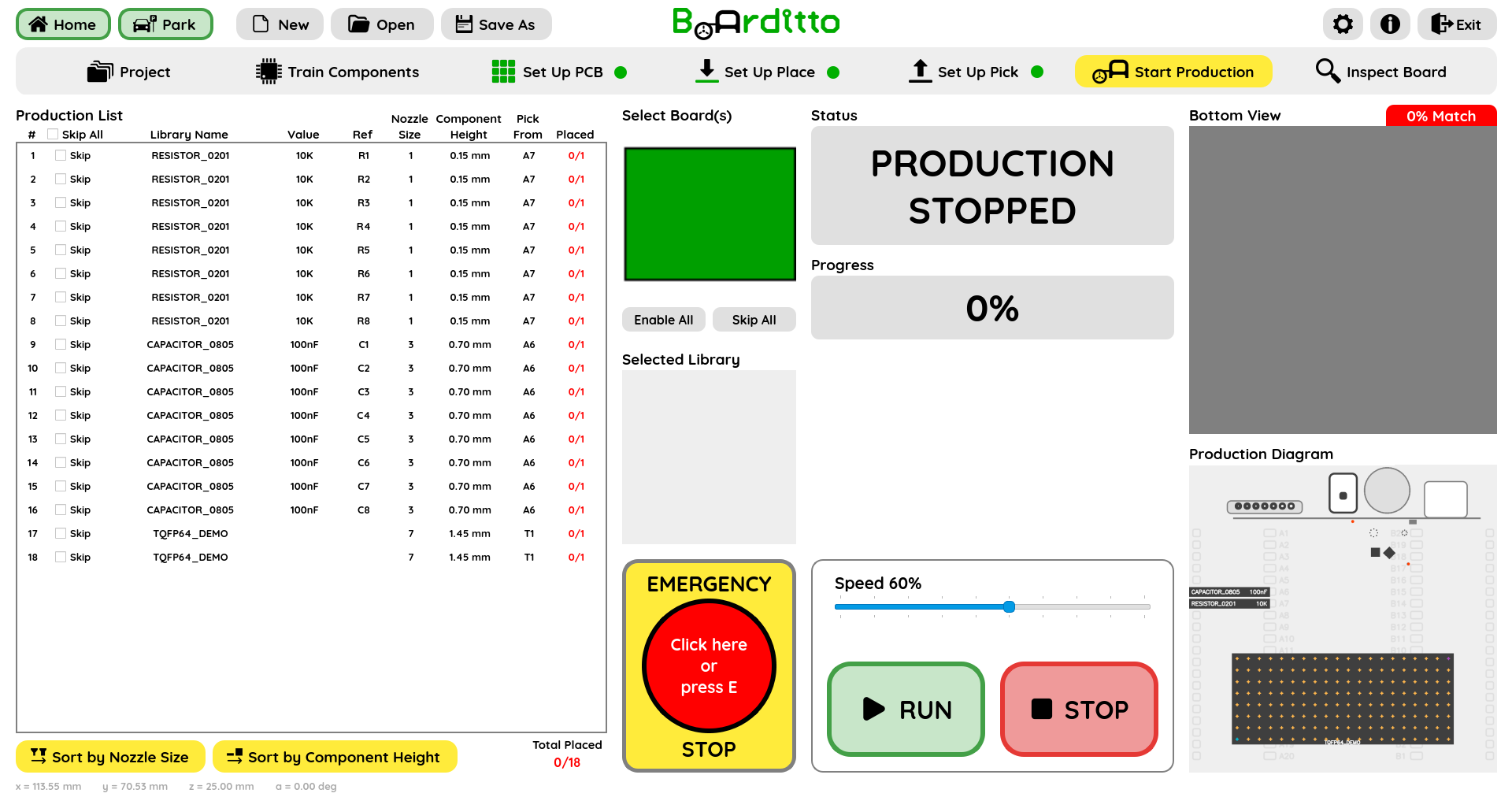
Production List
The Production List shows every component that will be assembled on your PCB.
Tick the “Skip” checkbox next to a component in the Place List to omit it from placement during production. You can also use “Skip All” and then re‑enable the specific items you want to place.
(Optional) To streamline the production job, select “Sort by Nozzle Size” or “Sort by Component Height.” This minimizes the number of tool changes required and shortens the total production time.
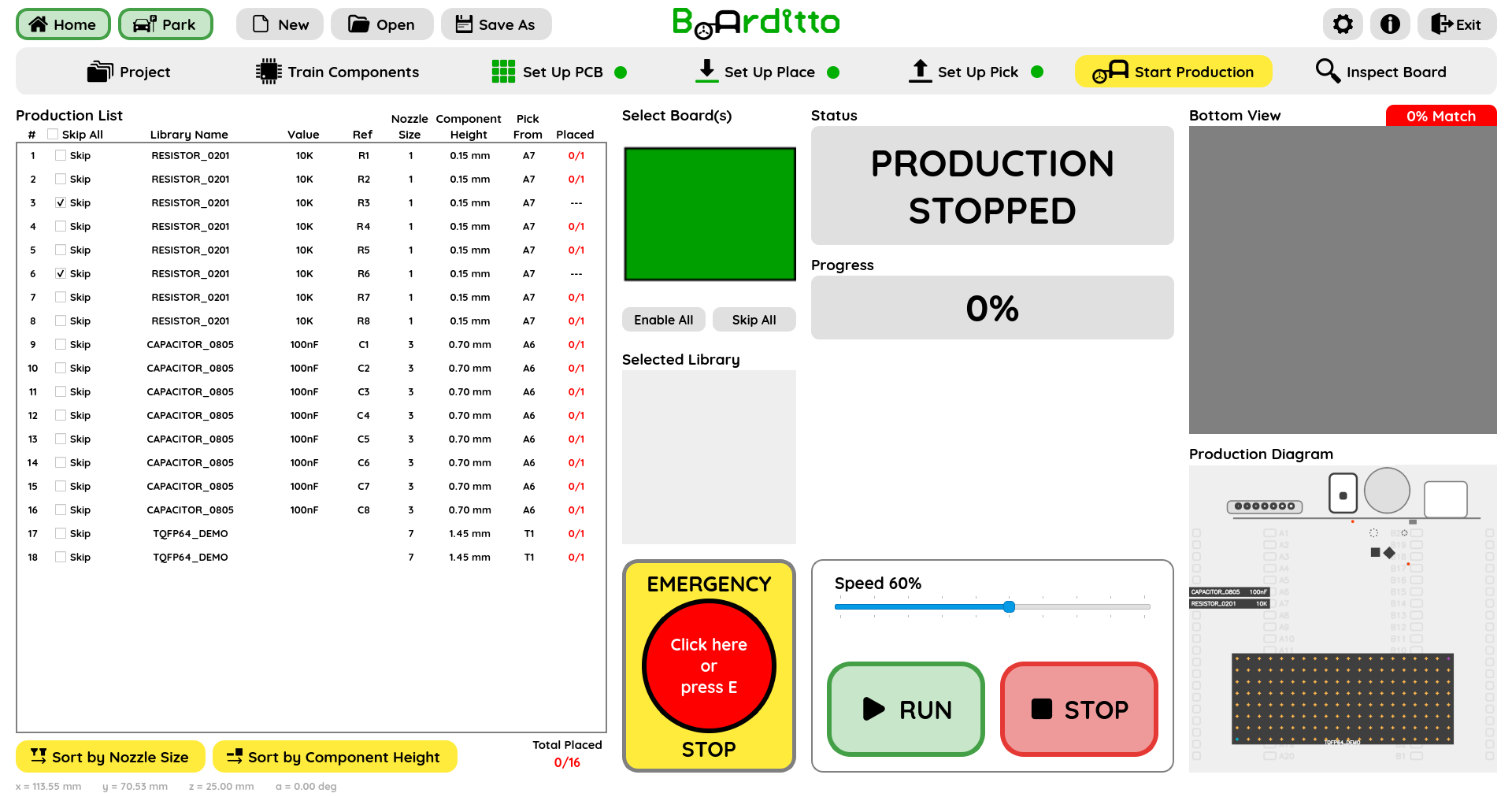
Multi-Board Panel Options
If your PCB has been configured in Set Up PCB as a Multi-Board Panel, select the board(s) you want to assemble from the “Select Board(s)” diagram. To do so, simply click on the green boxes (which represent the boards within the panel) to highlight the ones you want to include in the production. For Single Boards, no action is required.
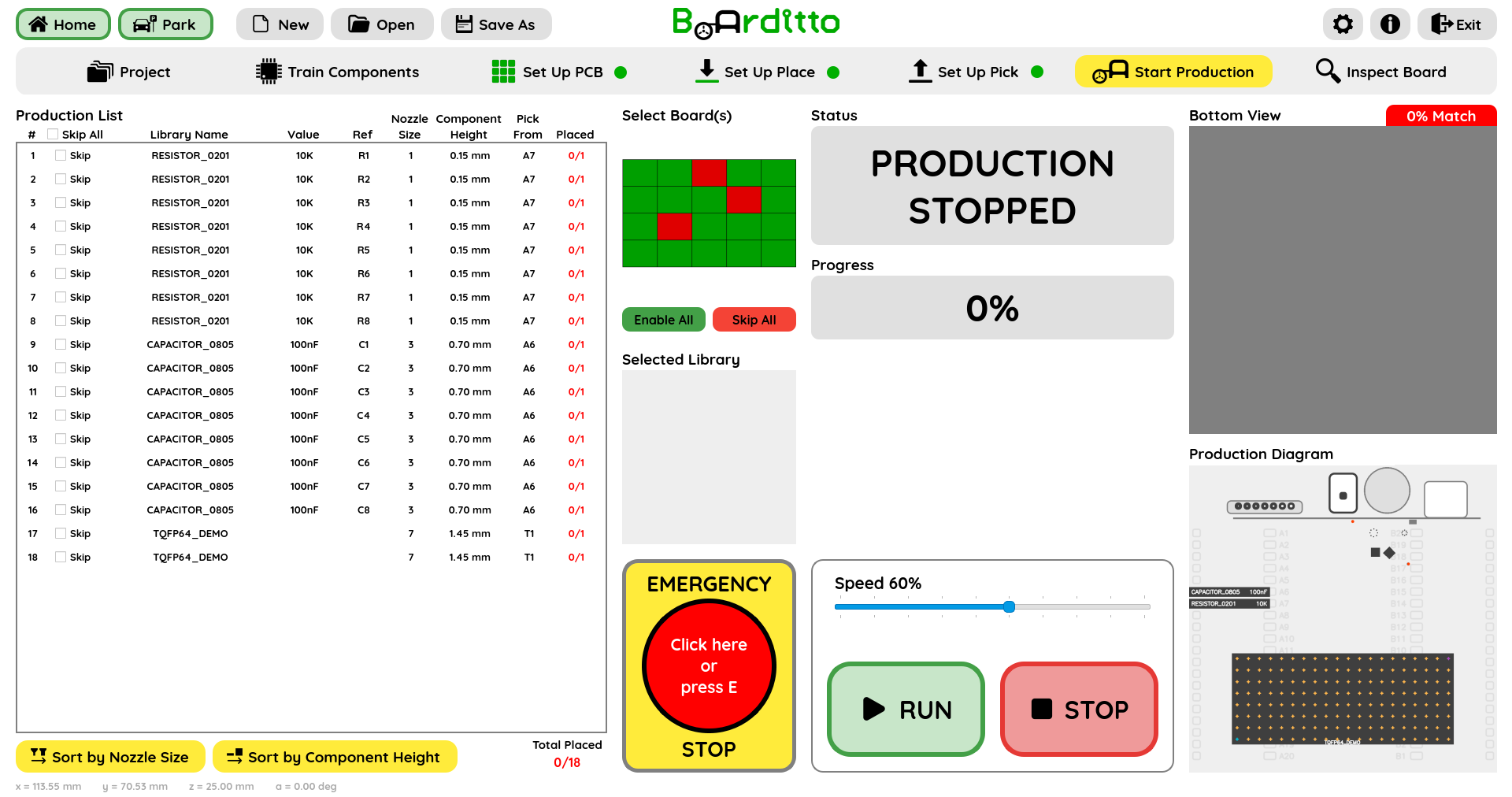
Run Production
Set the production speed with the Speed slider. The default is 60%.
Tip: If this is your first time running the production job file, you can optionally start at a lower speed (e.g., 10% to 30%). Once you confirm that the results meet expectations, increase the speed in subsequent runs.
Click “Run” to begin production.
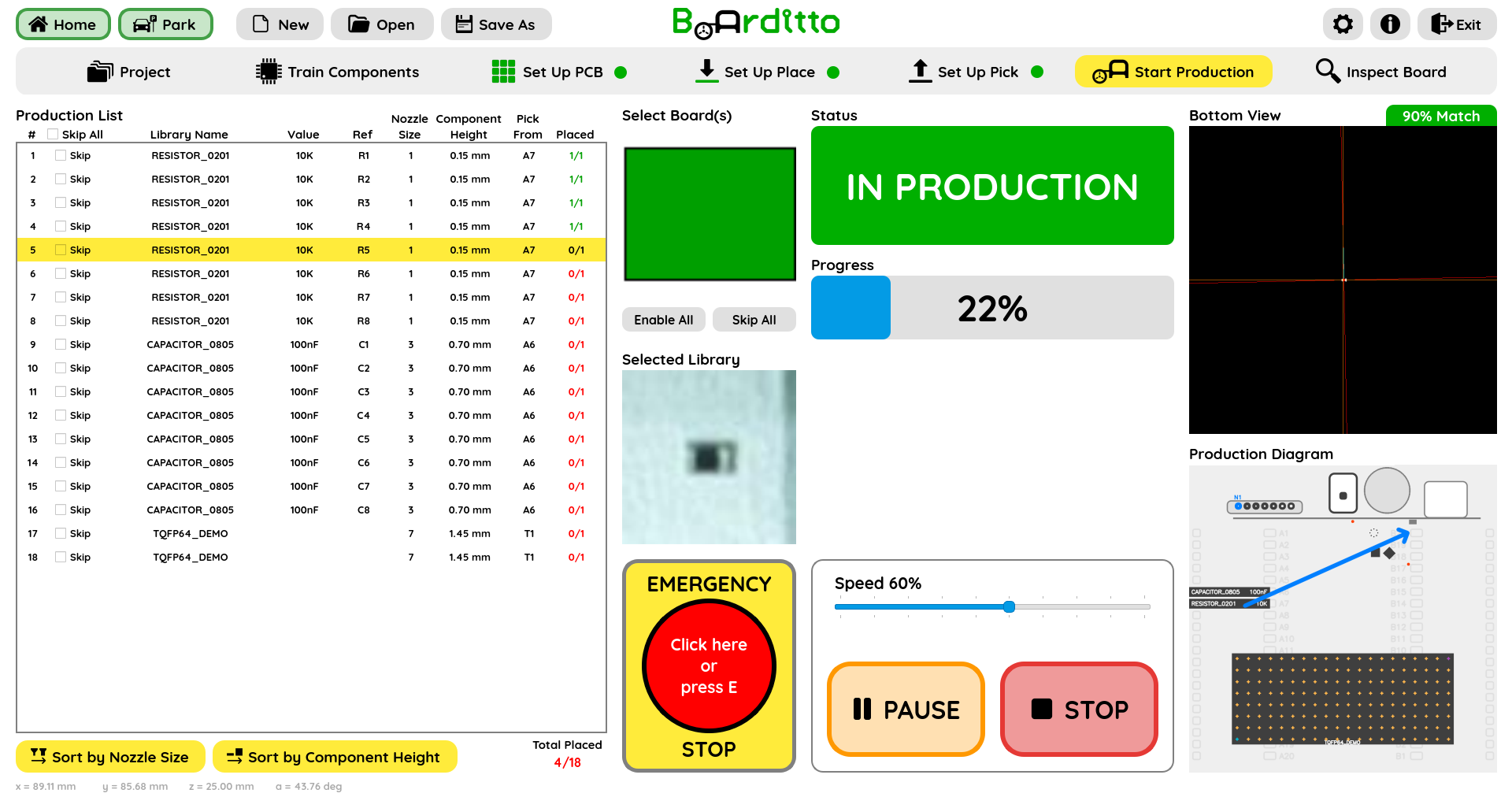
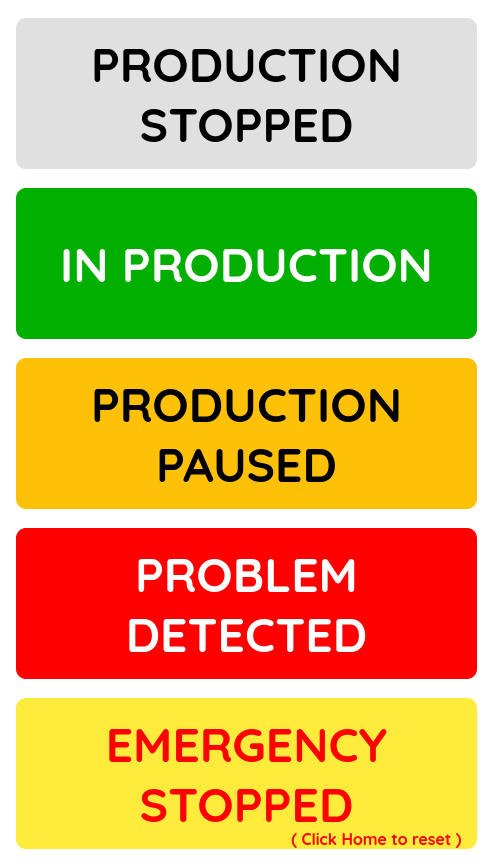
Regularly monitor your job’s status and progress while production is running. The color‑coded status and progress bar is oversized for clear visibility even from a distance.
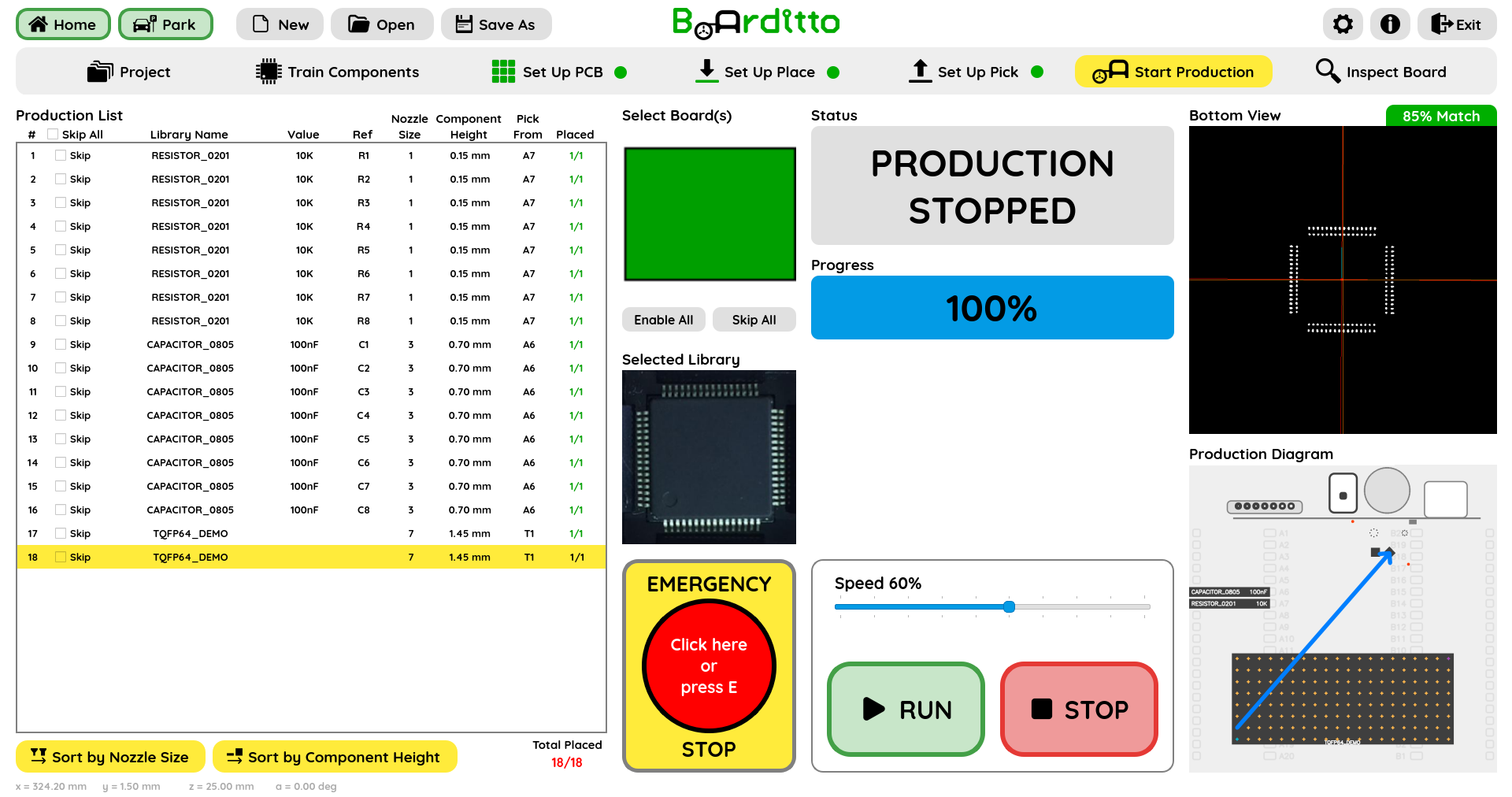
The arrow in the Production Diagram indicates the location from which a component is picked up and its destination on the PCB.
When the production job is finalized, the status will display “Production Stopped” and the progress bar will have reached 100%.
Stop Button
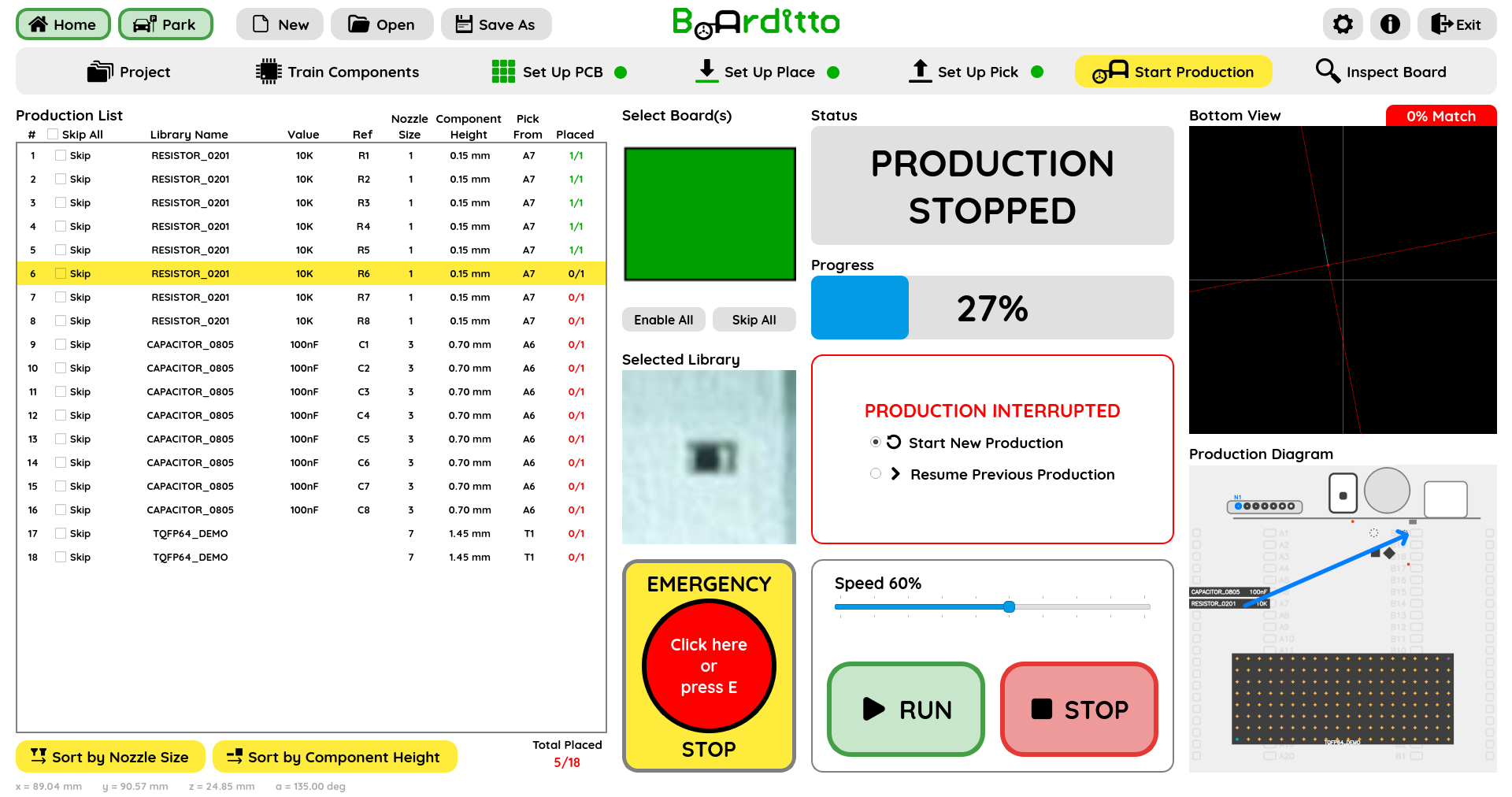
To safely stop production before it has ended, click “Stop”.
Two options will then be available to continue production:
Start new production
Resume previous production
Saving the job file at this stage will enable you to resume production later exactly from where you left off.
Emergency Stop Button
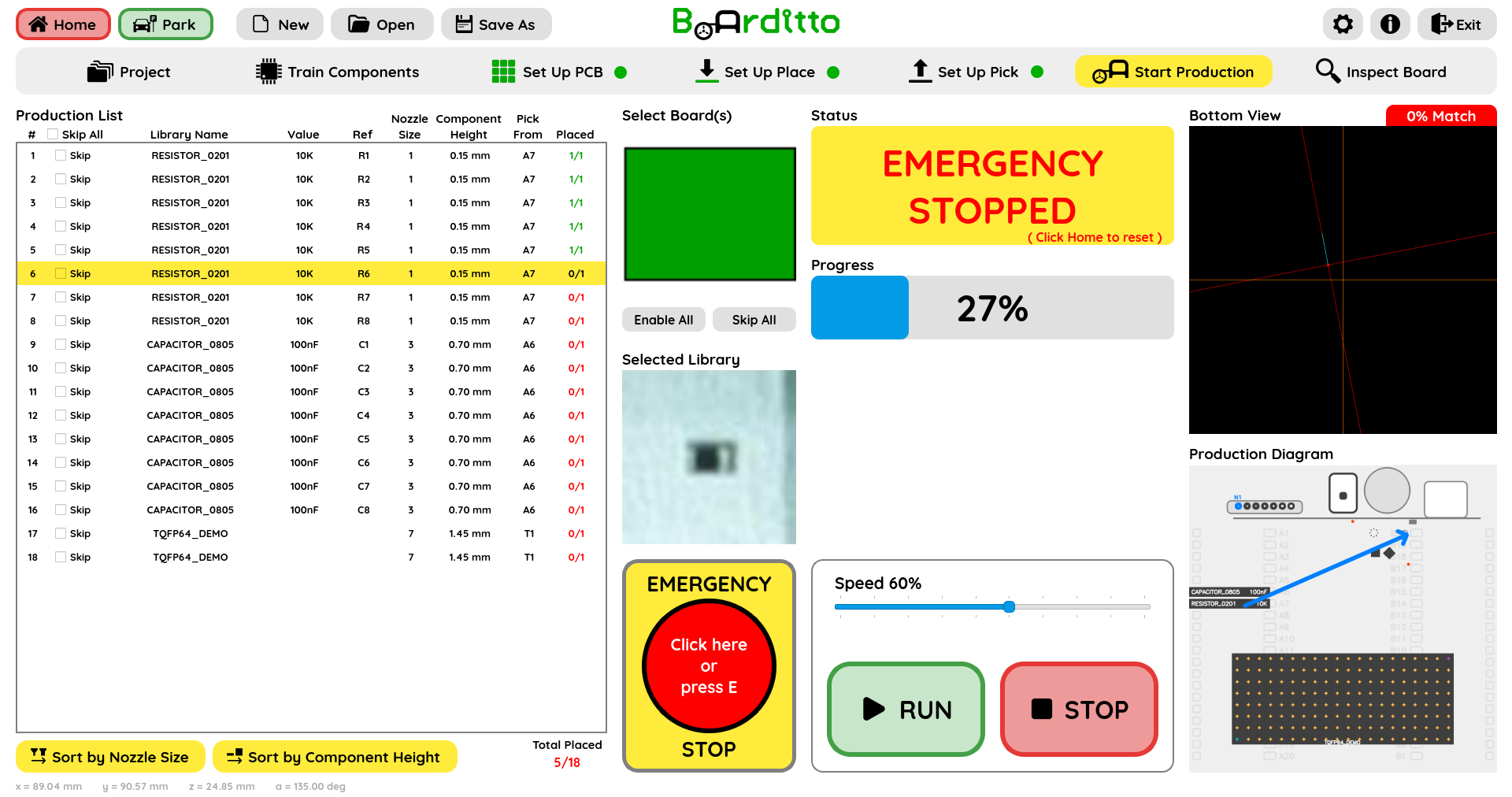
In case of emergency, press the Emergency Stop button (or hit the “E” key) to immediately halt all motion. To reset the emergency stop, press the Home button.
Tip: Another way to quickly stop the machine is to press the physical “Machine On/Off” button to turn it off.
Next: Inspection